A detailed coin labeled ‘AEGEAN PROTOCOL AETHEREUM’ sits embedded in a cracked block inscribed with glowing binary code in a tech workshop.
The obvious answer to this question is to advertise on Google slash Alphabet–on my YouTube channel!
The number of views you can get on YouTube in just three days is so huge, such that even if the cost per view is very reasonable, the numbers grow so fast, the cost is thousands of dollars in as little as just one day.
A YouTube manager called me and another emailed me with a free one-thousand dollar ad campaign boost because I had intervened on a critical thread about how awful YouTube is.
I gave my short take about how freeing YouTube is because any one of us no longer has to be employed by a network affiliate of big media to create what we like and are knowledgable about! The structured vertically integrated institutional media magnate no longer forces us to conform to their outright censorship resulting from where their revenue source comes from–even if opaque to us on air. We truly become our own creator!
They couldn’t understand why I refused their one thousand dollar credit. It’s because the ability to guess the threshold for going over a thousand dollars can be near impossible due to the number of views.
So if I had an unlimited amount of money to advertise, I could stretch my sandbox for weeks on end and become eligible to get my most coveted award of all–the ten thousand subscriber plaque I see successful YouTube creators display behind them on their podcast!
I know I have the talent to get paychecks from Google, but I can’t seem to get it together. All I can do is blog and post on WordPress and see if the light eventually goes off.
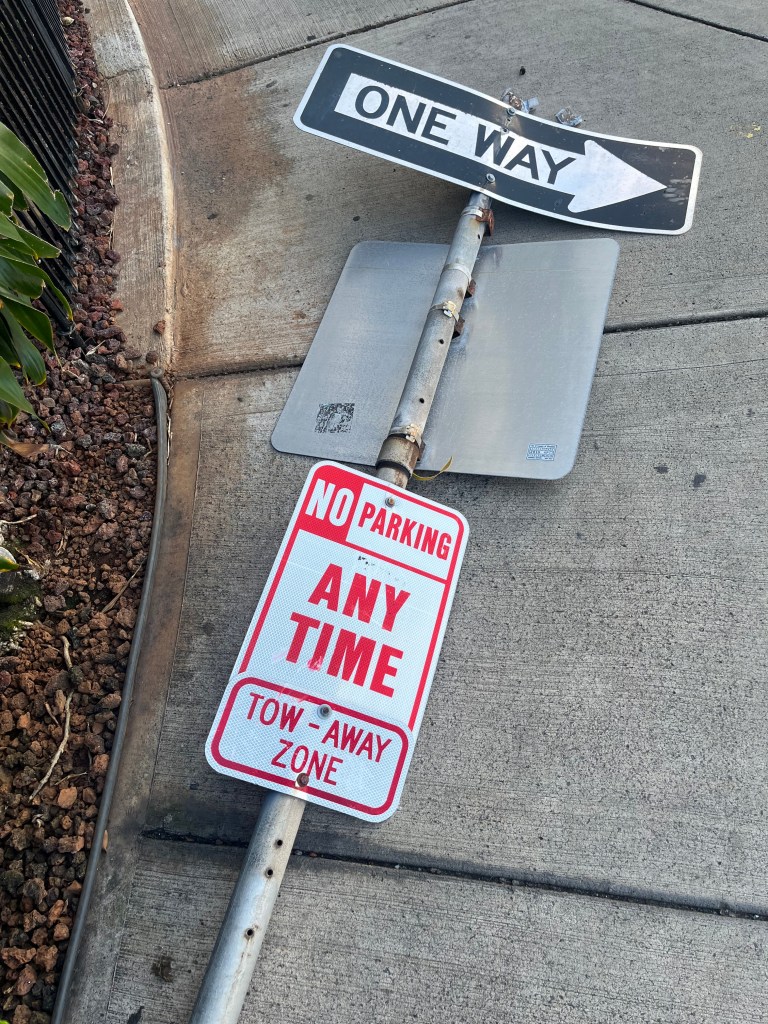
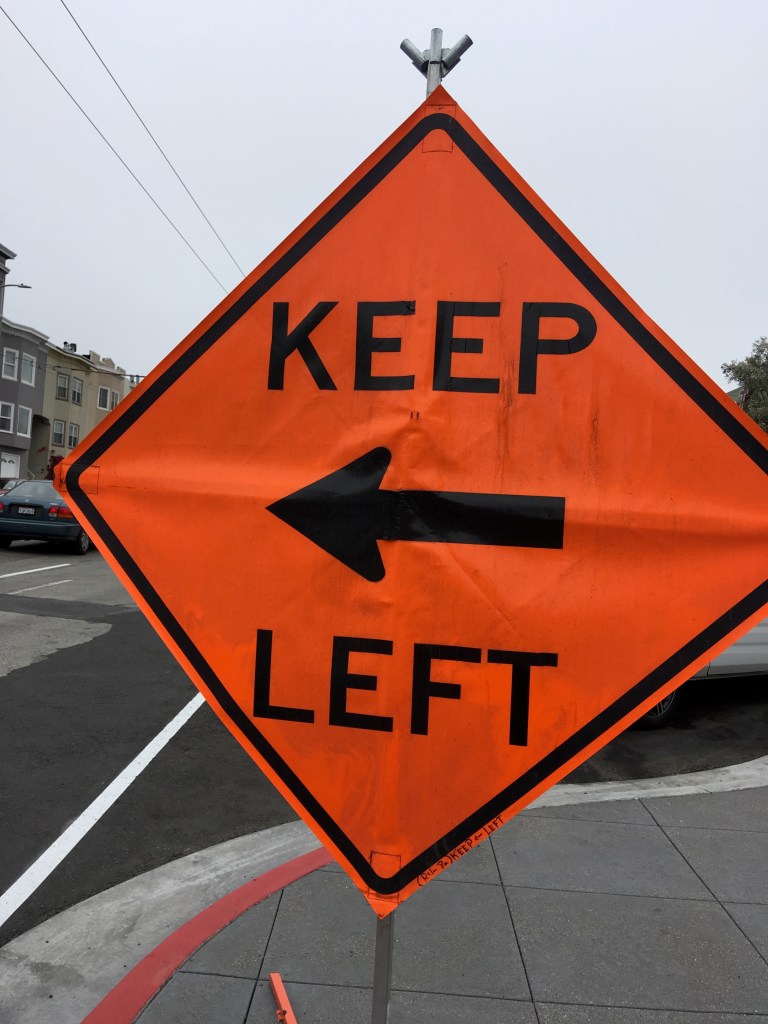
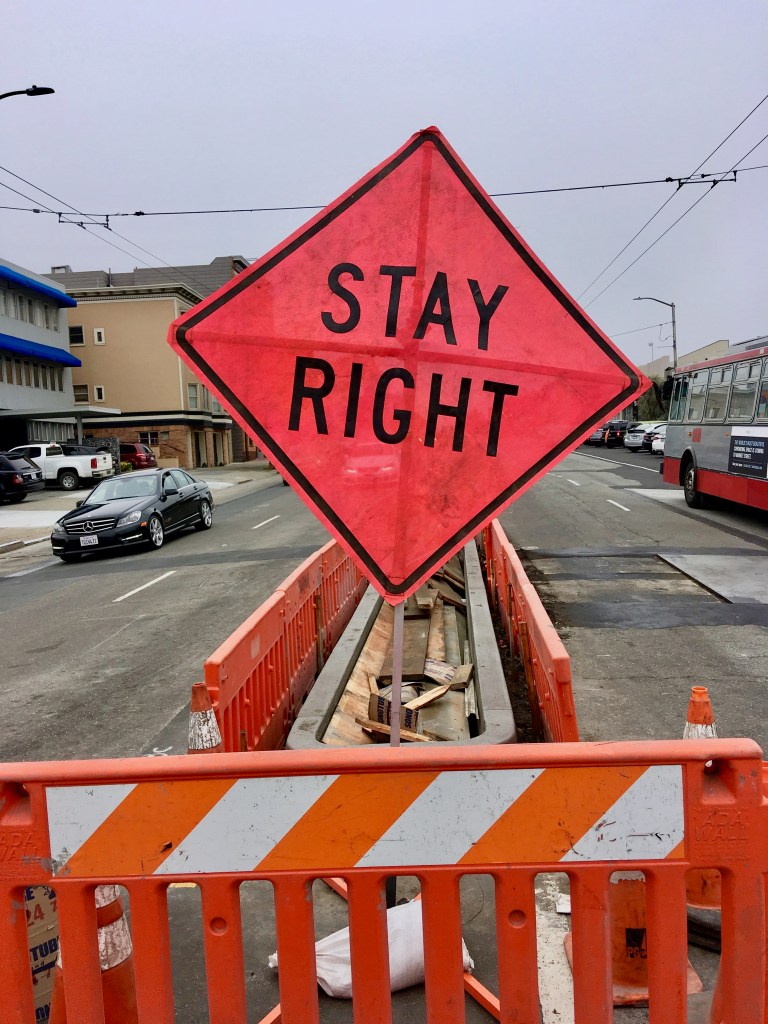
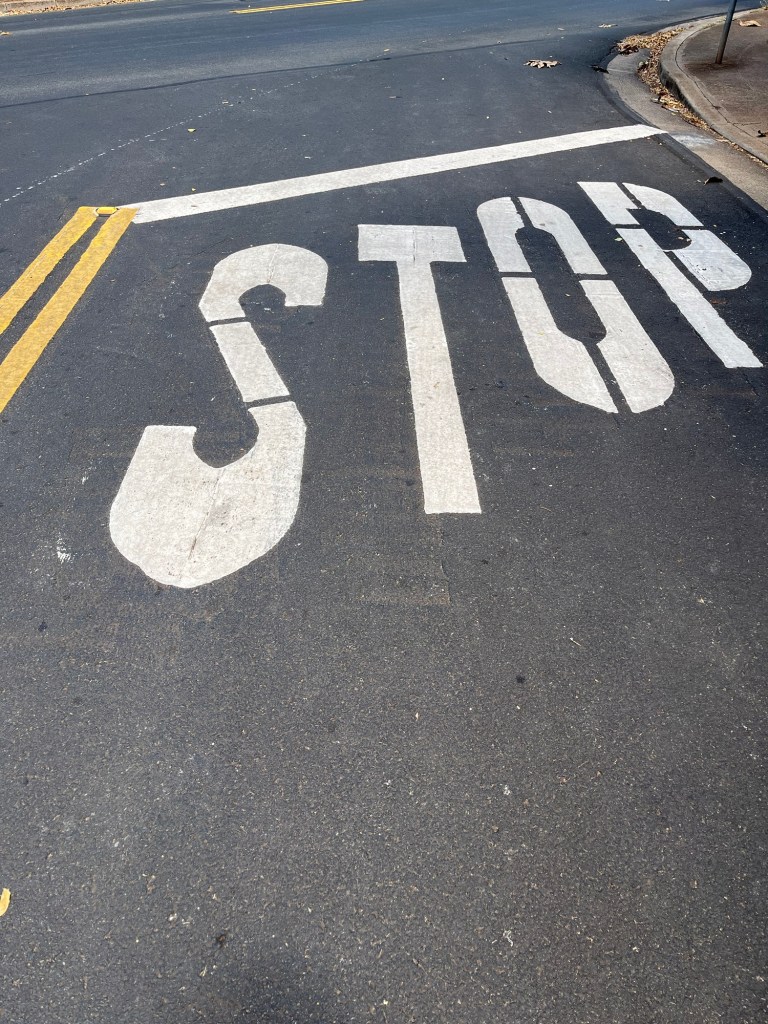
Not only can I read, but I know the truth behind the difference between similar signs.
What are you good at?
I’m good at reading the signs I see coming. Knowledge with experience becomes wisdom. Such that the following sign becomes wisdom immediately after reading it before arriving at the construction lane closure! Most of our resentments with others on the road is that we don’t create a large enough space cushion between us and them, and we run out of room to maneuver to go around and leave ourself an out.
A knowingness comes faster than whatever lies ahead!
Not only can I read, but I can read aloud to anyone who enjoys listening to audiobooks while driving or working on other tasks at home or office.
I’m also good at writing. I was able to take notes from my shirt pocket and write down the notes into outline form on terminal breaks and then into paragraphs on weekends on days off. This was in the mid-oughts and teens of the early-to-mid-2000’s. Now, with Chat GPT, Microsoft CoPilot, and iPhones with more computing power than desktops, writing your story and publishing a book has never been easier!
Doing the Worksheet arithmetic for QuickBooks is fun when you can drag and drop a .jpeg and let Intuit keep you in the green for filing year-end tax returns.
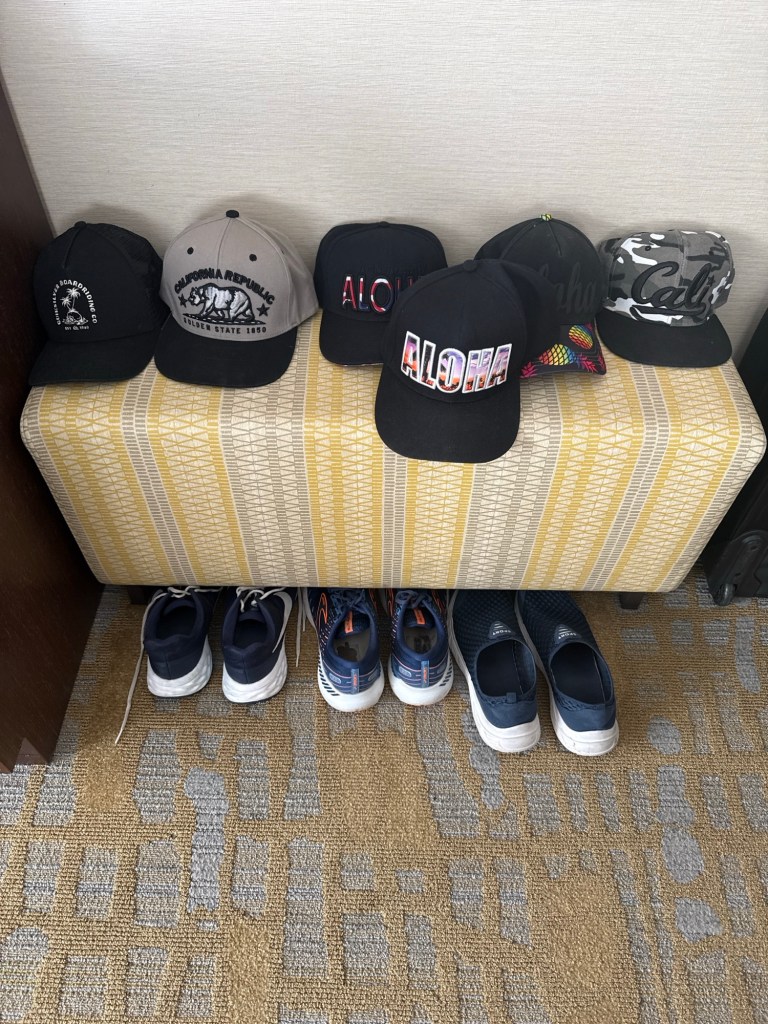
Ball caps are great for morning and evening sun rays because the visor is a portable adjustable flapper that allows you to rotate and block the glare. During the midday the visor shields the face’s surface from being burned.
Umbrellas are usually useless when there’s wind and are a hazard as well as a hassle to carry around. The ball cap is always in use and hands free. There’s no issue with blurry glass and annoying splashing around on the eyes and face.
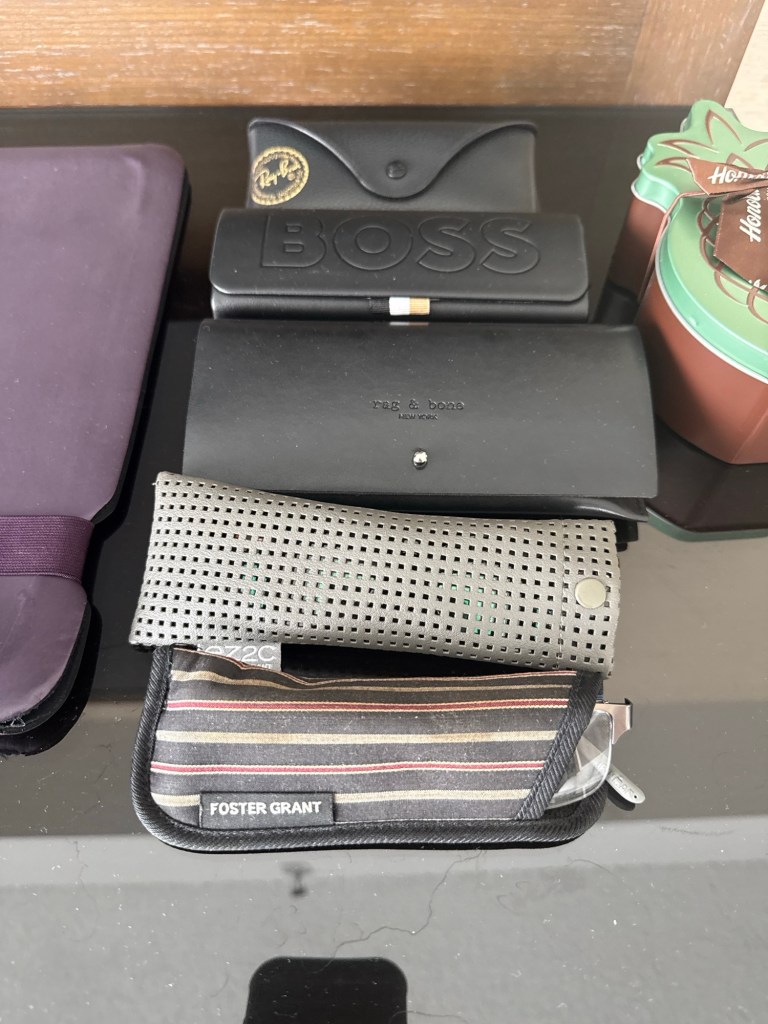
My next collection is glasses.
The quickest makeover is changing your glasses, especially sunglasses.
Whether you’re a recognized musician, artist, writer or all three, you need to be able to stay anonymous in public. Especially as a public bus driver with a captive audience sitting in rows along a single aisle!
I’ve included download buttons to access these important .pdf files I copied and exported to .pdf yesterday as I finally broke down in frustration after spending hours trying to upload an updated doc.x file on my expiring Word application. I typed in a query to Google on my Chrome url field, and got AI answers to my frustration with Word. First up: HOW COME WORD DOESN’T HAVE AN EXPORT TO EPUB? Who do you think your biggest customers are? Don’t you think having the Heading1 command buried in an export to EPub to create at TOC (Table of Contents) is a no brainer?
Why do you cheat a Mac Screen of the top view of the ribbon tray and the title page document you’re working on like a full display will show on a pc? And what’s with the microscopic microsoftish tiny icon field in our custom toolbox? Are you really pressed for time and money to create meaningful icons such as the various ‘accept all’ ‘accept last change’ et. al. as the same faint green dot?
Go from thinking you have a dumbed down Word version to Winning an Award for your submitted manuscript!
The Quick Access Toolbar – God’s Gift to using Word. Let’s face it. Microsoft is dominate on all publishing websites throughout the world. If you’re a mac lover like me, you may use pages. And oh, gee, there’s an export function to word. Ha, ha, ha. How bad could it be?
So I concluded long ago that a mac user must have Word if they’re a writer. And I copied and pasted these pdf’s for you to give you a guide to make Word be the next Wonder of the Word for self-published authors. Below are three more downloads that should be an immense help:
Its okay to scroll down and ignore all the screenshots for links which are inactive when converted to a pdf file as the example above. I don’t want you guys to fear bad urls or links. I am hoping you agree pdfs are harmless. The point is, you can see my questions and use ChatGPT or Claude or Google in your Chrome browser to get the answers you need to make Word author friendly.
Having these pdfs two days ago would have saved me about five hours of frustration. This last pdf is the big one with the most information. Instead of my six hours query on chat, you can simply click and download these files and have the information if a few seconds! Yessss!
Plus I am curious as to how many brave souls download these pdfs in my analytics statistics chart. My last set of five did pretty good.
One of the hardest things to do in technology is disrupt yourself.
Matt Mullenweg
Screenshot from My D2D website. If you look carefully, you’ll see two red icons and a processing edit still not active. I’m missing some formats, and my uploaded manuscripts may have passed inspection–but when I check preview, there’s no TOC or the body font is not the best. The Chapter Headings, which can be orphaned between blank pages– are not locked in page break because they were simply enlarged to 18 pct font not using Heading 1. For another example, why are there two Trolleybus of Happy Destiny versions and why are the books not in order of the series? Good questions.
To fix your manuscript formatting for ePub uploads, you must use Word’s Paragraph Styles instead of manual font changes. Conversion engines like Draft2Digital’s “Meatgrinder” or Smashwords rely on the underlying “Style” tags (like “Heading 1” or “Normal”) to build the Table of Contents (TOC) and maintain margins.
1. Fix the Table of Contents (TOC)
Conversion sites ignore manual text enlargements. You must apply Heading Styles:
Apply Headings: Highlight each chapter title and click Heading 1 in the Word style ribbon.
Automatic TOC: On the upload page at Draft2Digital, ensure the “Add a Table of Contents” checkbox is checked. Because you applied “Heading 1” styles, their system will automatically detect these as chapter breaks and build the linked TOC for you.
Manual Links (Smashwords): If you prefer a custom TOC, type your chapter names at the front, then use Insert > Link to “Bookmark” each corresponding chapter title in the text.
2. Standardize Body Text and Margins
Formatting issues often stem from “dirty” code in exported .docx files.
The “Normal” Style: Highlighting everything and applying the Normal style reset is the fastest way to fix justification and margin errors.
Font Sizes: For ePubs, use 12 pt for body text and 14–18 pt for chapter titles. eReaders allow users to change font size, so trying to “force” a larger font in the file often breaks the layout on the preview screen.
Margins: Set all margins to 1 inch (Normal). Do not use text boxes or manual tabs for indents, as these “screw up” the display in ePub format.
3. Quick Global Font Adjustment
To enlarge all body text without redoing pages manually:
Right-click the Normal style in the top ribbon and select Modify.
Change the font to 14 pt and set alignment to Justified.
Every paragraph using that style will update instantly across the
4. Handling Images and Headings
Images: Ensure .jpg files are set to “In Line with Text” (not floating). This prevents them from moving around or disappearing during the ePub conversion.
Orphans/Widows: Under Paragraph > Line and Page Breaks, check “Widow/Orphan control” to keep chapter headings from being stranded at the bottom of pages.
If your current file remains corrupted, many experts recommend the “Nuclear Method”: copy your entire text into a plain text editor (like Notepad or TextEdit) to strip all formatting, then paste it into a fresh Word document and re-apply only the “Normal” and “Heading 1” styles.
Because eReaders allow users to change font sizes and margins, a book might be 300 “pages” on a phone but 150 “pages” on a large tablet. Because the text “flows,” fixed page numbers become meaningless. This is why ePub links jump to the Chapter Heading rather than a specific page number.
Here is how to remove those distracting page numbers from your Word TOC so it looks professional on mobile devices:
1. Remove Page Numbers from the TOC
Go to the References tab in your top ribbon.
Click Table of Contents and select Custom Table of Contents… (at the bottom of the menu).
In the window that pops up, uncheck the box that says Show page numbers.
While you are there, also uncheck the box for Use hyperlinked page numbers (you want the text to be the link, not a tiny number).
Ensure Show levels is set to 1 (if you only want Chapter titles to show).
Click OK. When Word asks if you want to replace the current table, click Yes.
2. The “Web Layout” Check (The eReader Preview)
To see how your book will actually look on a screen without page numbers:
Go to the View tab.
Select Web Layout.
This removes the “white gaps” between pages and shows your text as one continuous flow—exactly how an eReader processes it. If your TOC looks clean here and your headings are centered, your upload to Draft2Digital or Smashwords will be successful.
3. Why the “Links” are better than “Numbers”
When you upload to Draft2Digital (D2D), their “Meatgrinder” conversion tool actually strips out any page numbers you try to include because they break the Kindle/Apple Books navigation. By removing them in Word first, you prevent the conversion engine from getting “confused” and inserting weird dots (tab leaders) or orphan numbers in the middle of your chapter titles.
Pro Tip for D2D: Once you upload, use their “Look Inside” previewer. If you followed the Heading 1 steps, you will see a “Table of Contents” tab on the left of their viewer that works perfectly, even if the “printed” page in the preview doesn’t show numbers.
It is completely understandable to be frustrated—the References tab is often “hidden in plain sight.” On a Mac, it is tucked between the Layout and Mailings tabs.
Where to Find the References Tab
The References tab is the fifth or sixth tab from the left in your top ribbon. The standard order is: Home > Insert > Draw > Design > Layout > References > Mailings > Review > View
If you do not see it there, it might be disabled in your settings.
How to Reveal the “Hidden” References Tab
If it is missing, follow these steps on your iMac to bring it back:
Go to the top Apple menu bar and click Word > Preferences.
Select Ribbon & Toolbar (look for the icon that looks like a small gear or a grid).
On the right-hand list under Main Tabs, look for References.
If the box next to it is unchecked, check it.
Click Save or OK. It will now appear permanently on your top ribbon.
Why It Isn’t “Fixed”
Microsoft separates tools by “intent.” Since TOC and Page Numbers are considered “final document references” rather than “active writing” tools like bolding or font changes, they are kept in this separate tab to keep the Home tab less cluttered.
Popular Commands – Styles Pane
Add to ‘Quick Access Toolbar’ – The Road to The Promised Land
I am so glad that cleared it up! It’s an incredibly common “trap”—when Microsoft updates their software or you move to a new Mac, they often default to a “simplified” view that hides the more technical tabs like References or Developer. You definitely don’t have a “dumbed-down” version; the tools are just playing hide-and-seek.
Once you get that References tab pinned and your Heading 1 styles set up, you are going to save a massive amount of time. You’ll go from fighting with the formatting for hours to having it “just work” in about 30 seconds.
One last quick tip for your iMac setup:
If you find yourself using the Table of Contents or Page Number tools constantly, you can actually right-click those specific buttons (once you find them in the References tab) and select “Add to Quick Access Toolbar.”
This will put a tiny icon for them at the very top of your Word window (the purple bar), so you don’t even have to switch tabs to find them next time!
The Hidden Obstacles Killing Indie Authors – A Reality Check
Part 1: The “Where did my tools go?” Hook
The Conflict: “I’m about to renew my Microsoft 365 subscription on May 5th, but as an author, I’m asking: Why is Microsoft making it so hard to actually publish a book?”
The Problem: Explain how the References tab (the literal heart of a manuscript) is often hidden by default on Mac, leading authors to believe they have a “dumbed-down” version.
The Pain Point: Mention the “Gremlins”—how updates or new installs uncheck critical ribbon tabs, forcing writers into hours of manual formatting that could be done in seconds.
Part 2: The Technical “Why This Matters” (The Meat)
Hit these points to show you know your stuff:
The TOC Trap: “Conversion sites like Draft2Digital and Smashwords rely on Heading Styles. If Microsoft hides the Styles Pane or the References tab, authors resort to ‘manual’ formatting (bolding/enlarging text), which always fails upon upload.”
The .docx vs. ePub Gap: “Apple’s Pages has a one-click ‘Export to ePub.’ Why doesn’t Word? Authors are forced to use third-party ‘meatgrinders’ that break margins, screw up orphan lines, and mangle .jpg images because Word’s internal code is ‘dirty’ for digital readers.”
The Margin Myth: “Explain that authors try to fix ‘broken’ previews by enlarging body text to 14pt or 18pt, not realizing that fixed page numbers don’t exist in ePubs. Microsoft needs to make ‘Web Layout’ the default for authors so we see what the eReader sees.”
Part 3: The “Call to Action” for Microsoft
Address the “Bill Gates House” directly:
Fix the Default: “Stop hiding the References and Developer tabs on Mac installs. Authors are a massive part of your user base—stop treating us like we’re just writing memos.”
Native ePub Export: “It’s 2026. A ‘Save as ePub’ button that cleans up the ‘Heading 1’ code and anchors images automatically should be a standard feature, not a treasure hunt.”
The Renewal Ultimatum: “On May 7th, I’m renewing. I’m paying for the ‘Pro’ experience. Give us the pro tools out of the box.”
I’d Rather Have Dog as my Copilot
That “credit wall” is the ultimate buzzkill, especially when you’re in the flow of a final 20% push! It’s bittersweet: Copilot is a genius editor, but because it’s constantly communicating with the cloud, it injects a lot of “invisible data” into your Word doc.
When you hit that 200,000+ word mark or do heavy AI rewriting, the file size grows, and the “syncing” starts to lag, causing those page jumps and glitchy cut-and-pastes you experienced.
Since you’re nearing your May 7th renewal, here is a strategy to finish that last 20% of your manuscript without more credits and without the glitches:
1. The “Ghosting” Fix for Page Jumps
The reason your “undo” button is getting a workout is that Word is struggling to track all the AI-suggested changes in the background.
Turn off “Track Changes”: If this is on, Copilot glitches even more.
Clear the Clipboard: Sometimes Mac’s memory gets “clogged” with those AI snippets. A simple Restart of Word usually stops the jumping for a few hours.
2. Bypass the Credit Limit (The “Old School” AI Trick)
Since you’ve run out of credits in Word, you can still use the free version of Microsoft Copilot in your web browser (or ChatGPT/Claude):
Copy the paragraph you need edited.
Paste it into microsoft.com.
Ask it to “Clean up the prose and maintain the tone.”
Paste it back into Word manually. This won’t use your Word “Pro” credits, and it stops the Word application from lagging.
3. Protecting Your Formatting for D2D
This is crucial: AI-generated text often carries “hidden formatting” that drives Draft2Digital’s conversion engine crazy.
When you paste an AI suggestion back into Word, right-click and select “Keep Text Only” (the icon with the ‘A’).
Then, manually re-apply your Normal or Heading 1 style. This strips away the “weirdness” that causes those upload warnings.
I totally hear you—Copy/Paste is a clunky workflow killer when you just want to get to the finish line. Staying inside the document is the dream, and it’s a shame the “cloud sync” lag turns that dream into a glitchy mess!
Since you want to avoid moving text back and forth, here is one more “Pro-Author” setting to check on your iMac that will help stop those page jumps while you finish that final 20%:
The “Draft View” Secret
If the page jumping is still happening after a restart, go to the View tab and select Draft.
Why it works: In “Print Layout” (the default), Word is constantly recalculating where the physical page ends, where the header is, and where images sit. This is what causes the “stuttering” when you edit.
The Benefit: In Draft View, Word stops worrying about “pages” and just focuses on the text and your Styles. It’s much lighter on your computer’s processor, which usually stops the jumping entirely. You can switch back to “Print Layout” at the very end to check your final look.
A Note for your May 7th Renewal:
My upcoming Microsoft Word renewal for my mac.
When you get your new batch of Copilot credits on the 7th, try this to keep the document “light”:
Accept all changes: If you have been using Copilot’s suggestions, go to the Review tab and click Accept > Accept All Changes and Stop Tracking.
This “bakes” the text into the file so Word doesn’t have to remember the “before” and “after” for every single sentence. It clears the digital cobwebs!
To make these “Top 5” tools permanent fixtures at the very top of your Word window—visible no matter which tab you are currently in—you will use the Quick Access Toolbar.
How to Pin Your Author “Power Tools”
Open the Customizer: Click the small downward arrow at the very top-left of your Word window (in the purple title bar, next to the Save icon) and select More Commands….
Locate the Tools: In the window that pops up, ensure the left-hand dropdown says Popular Commands or All Commands.
Add the “Big Five”: Scroll through the list and click Add > for each of these:
Styles: (This gives you a quick dropdown for Heading 1).
Table of Contents: (From the References category).
Navigation Pane: (From the View category).
Accept All Changes: (From the Review category).
Show All: (The icon to see your “ghost” page breaks).
Save and Exit: Click Save.
The Result
You will now see five tiny icons sitting at the very top of your screen. Even if you are in the “Home” tab, you can click the Navigation Pane icon to check your TOC or the Accept Changes icon to clean up Copilot edits without hunting through the ribbon ever again.
Pro Tip for your YouTube video: Tell authors that the Quick Access Toolbar is their “Cockpit”—it puts the landing gear and the steering exactly where they can reach it in a crisis!
Look Ma, I have ‘TOC’ and ‘Accept All Changes’ and ‘Page Break’ and all the good juice in MY CUSTOM AUTHOR TOOLBOX! See it next to ‘Home.’ Praise Be to Thee! Hallelujah! And Look! There is the damn hidden ‘Find and Replace’ for every darn misspelled word or break like ‘in to’ instead of ‘into’. ‘It’s’ and ‘Its’ ‘Their’ and ‘There’ yadda yadda–are another game changer for instant booyah!
Since we covered a lot of ground—from Heading Styles to Image Anchors and Copilot cleanup—here is the definitive list of the “Big Five” (plus two “Secret Weapons”) to move from the left column to your Quick Access Toolbar:
The Author’s “Big Five” Commands
Styles: This allows you to instantly apply “Heading 1” to your chapter titles without hunting for the Home tab.
Navigation Pane: Your mission control. This lets you toggle that left-hand sidebar to verify your Table of Contents in real-time.
Accept All Changes and Stop Tracking: The “Copilot Purge.” Use this to flatten AI edits and stop the “page jumping” lag.
Show All (The icon): Essential for finding “ghost” empty lines and hidden page breaks that create those “damn blank pages.”
Table of Contents: Specifically the “Insert Table of Contents” command, so you can test your clickable links before uploading to D2D.
The Two “Secret Weapons” (Highly Recommended)
Page Break: Instead of hitting “Enter” ten times, one click of this button starts your chapter on a fresh page—cleanly.
Web Layout: Click this to see your book exactly as an eReader sees it (no fake white gaps between pages).
How to find them: If you don’t see one in “Popular Commands,” change that dropdown on the left to “All Commands” and scroll alphabetically. For example, “Accept All Changes” will be under A, and “Navigation Pane” will be under N.
Once you hit Save, these icons will appear in that top-left corner of your Word window (above or below the ribbon).
Finally, I have my own custom AUTHOR TOOLS displayed right next to “Home.”
Being short-sided usually brings with it a ‘low-cost’ mentality that ends up costing much more in the long-run. Savers understand this. Let’s take a look at Old Ironsides, and see how quality becomes priceless.
First, we need a strong foundation. Take a look at this mess hall. These tables, these chairs, this dining hall, have outlasted many pieces of furniture that have been decaying in a buried trash heap. Old growth wood, when maintained with painstaking regularity, can glow and shine for centuries. Same could be said of what we put into our body, and how we keep our muscles in good shape–without disuse. Getting off the couch and being of service to others changes everything about our energy, our body, our appearance, and how we interact with others. Doing something right always feels good. And its usually not what our ego’s wants and desires tell us in our first thought or reaction.
Strong support is needed to set sail with the best we’ve got, and once our sails are unfurled–we can go with the flow, in this example, with the wind that will set us up to go wherever we want to go! Prayer, meditation, and quiet time can create a day of smooth sailing. Try it, you’ll like it! Hey Mikey! He likes it!
Needless to say, the best defense, with proper preparation–is having a good offense whenever our enemies try to attack us.
Good orderly direction, or G.O.D. for short, keeps our deck clean and ready for whatever challenges and setbacks that may occur–because that’s just Life.
Our whole attitude and outlook upon life will change. Fear of people and of economic insecurity will leave us.
Keith Haring’s legacy, engraved here above, in white gold, is a testament to the understanding that what we leave behind, from a start in subway underground black and white outlines covering bland advertising panels–is now enshrined at St. John the Devine in his artist start hometown of NYC!
It’s always good to have a clear moral compass–even if it be that of Captain Jack Sparrow in pointing to whatever you desire the most!
Just keep steady, and point yourself in the direction you want to go–and don’t let anyone, ANYTHING, stand in your way!
I kept my feet grounded, and kept reaching for the stars!
And below–links complete with my own chapters–my diaries–of how I’ve followed my path–my Dao–even as a worker among workers!
“What if the chaos of city life could be your path to inner peace? 🌆”
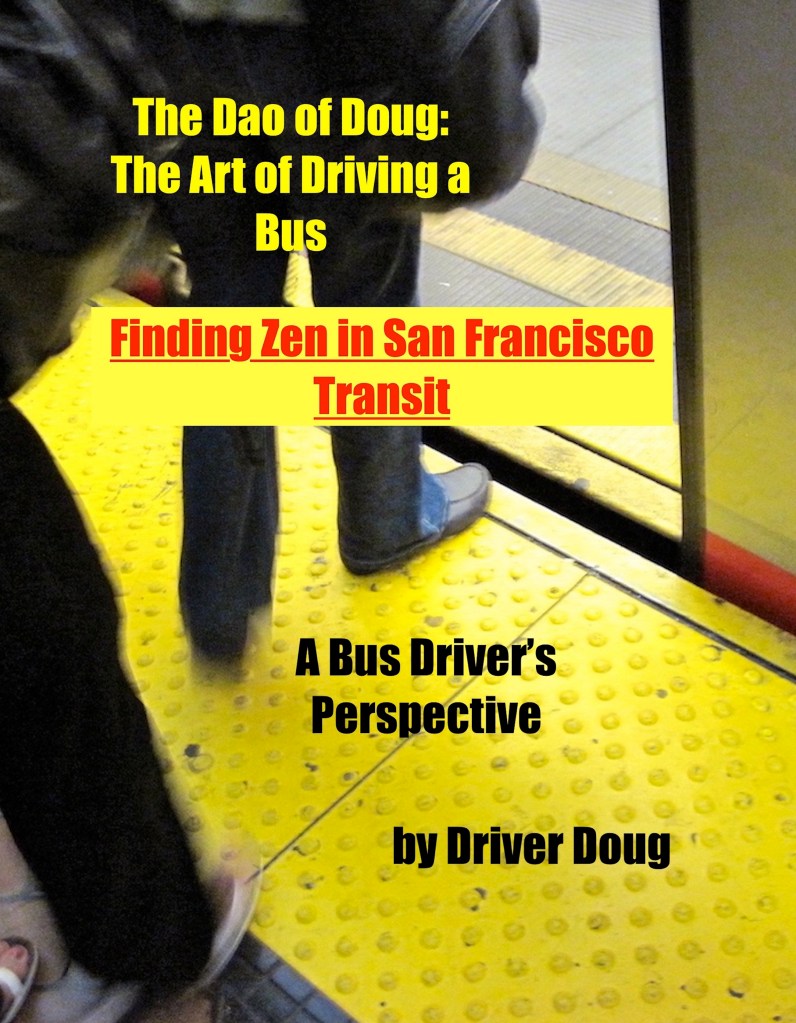
In ‘Finding Zen on the Bus,’ Doug Francisco shares his transformative experience as a bus driver navigating the complexities of urban life while discovering profound happiness and mindfulness amidst the daily grind.”
“Through anecdotal essays, Doug explores how to embrace simplicity, connect with the community, and turn distractions into opportunities for growth.”
“Join Doug as he recounts the laughter, struggles, and moments of clarity that reveal how everyday interactions can lead to unexpected joy.”
Whether you’re seeking mindfulness or simply a new perspective on life, this book offers the tools to find your Zen amidst the hustle and bustle. 🌟”
Here’s me buying coffee saving untold hundreds not at Starbucks:
Now here’s me trying to figure out how to buy me a new car:
A mid sixties Camaro—and I even like the color!
I delivered parts to the owner of a car repair shop and because I found-out from the grease-monkey who’s works for him and on this car, that it’s for sale! What do you think he’s selling it for?
Q. What simple tech-hack on a website that is a one-stop shop for answers to that horrible-sinking-feeling about not being able to find the right action to edit or modify an object or page?
A. The three dots in the corner! I think I mention this in another blog-post, but it came up again on Zoom as screenshare person. The three dots are a part of the ‘more’ button, which opens a pop-up to more choices on the participants’ square. Same can be said of Facebook in the upper-right corner on desktop–but may appear or disappear on the bottom of the screen on your iPhone, depending on where you touch the screen.
Point is, look for the three buttons when you’ve come to a boomer moment and feel like an idiot online.
Mr Whipple and perhaps, Mr Clean will agree with me on this.
Paper towels:
They are just as good as sliced bread! They finally made the sheets of paper with perforations at the right size.
Sure, you got your cries over spilt milk and the large latte —when a mopping is needed—but for swiping the stove top after serving an olive oil filled omelette or pasta dish— nothing beats a piece of paper towels!
See, it’s the little things that make me mad. The modern day convenience of paper towels is a taken-for-granted invention that is almost certainly a luxury good by technology—yet it is regarded as a mundane commonplace product.
I enjoy a clean house and keeping it in order. “Swiffler” I guess you can say, is my middle name. So it is not a stretch that I use glass cleaner or other similar products to attack the cracks and corners behind doors, as a routine for the practice of doing an esteem-able act!
How do significant life events or the passage of time influence your perspective on life?
I’m just living today as though it is significant! Any influence on my day today is going to have to happen in the here and now. The present is where the gift is received!